Overview
The Image block adds a single picture to any section that allows it, such as Rich text or a Group. You can link it to a page, add a caption, choose its shape, and control its size separately on desktop and mobile. It also has a border, rounded corners, a hover zoom and a scroll animation. Until you choose an image, a Shopify placeholder illustration is shown.
How to use
- Go to Online Store → Themes → Customize.
- Open the page and expand the section where you want the image, for example Rich text.
- Click Add block → Image, or select an existing Image block.
- Click Select to upload or choose an image.
- Optionally, add a Link to make the image clickable, and a Caption to show under it.
- Under Size, choose the Aspect ratio and Image fit, and set the Maximum width, Width and Height.
- Under Mobile size, change the width and height for phones if needed.
- Add a Border and Corner radius, then set the Alignment and other options under Style.
- Choose a Scroll animation and adjust the Padding.
- Click Save.
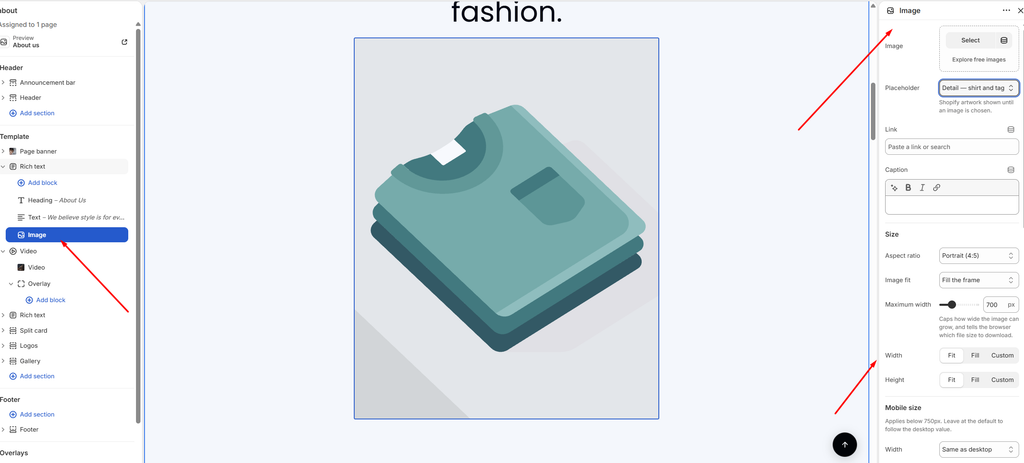
Settings
| Settings | Description |
|---|---|
| Image | Upload or select the image to display. |
| Link | Make the image clickable. Choose a page, product, collection or any URL. |
| Caption | Add a short line of text under the image. You can use bold, italic and links. |
| Aspect Ratio | Choose the image shape: Original, Portrait (4:5), Portrait (3:4), Portrait (2:3), Square (1:1), Landscape (3:2) or Landscape (16:9). |
| Image Fit | Fill the frame crops the image to fill the shape. Fit inside the frame shows the whole image, with empty space if the shapes don’t match. |
| Maximum Width | Cap how wide the image can grow (200–2000 px). This also tells the browser which file size to download, so a smaller value loads faster. |
| Width | Set the image width on desktop: Fit (its natural width, up to the maximum), Fill (the full available width) or Custom. |
| Custom Width | Appears when Width is Custom. Set the width as a percentage (5–100%). |
| Height | Set the image height on desktop: Fit (follows the aspect ratio), Fill (fills the space beside other content) or Custom. |
| Custom Height | Appears when Height is Custom. Set the height as a percentage of the screen height (5–100%). |
| Width (Mobile size) | Set the image width on screens below 750 px: Same as desktop, Fit, Fill or Custom. Custom shows its own Custom width slider. |
| Height (Mobile size) | Set the image height on screens below 750 px: Same as desktop, Fit, Fill or Custom. Custom shows its own Custom height slider (percentage of the screen height). |
| Border Style | Add a border around the image: None, Solid, Dashed or Dotted. |
| Border Thickness | Appears when a border is chosen. Adjust the border thickness (0–10 px). |
| Border Opacity | Appears when a border is chosen. Adjust how visible the border is (0–100%). |
| Border Thickness on Mobile | Appears when a border is chosen. Set a different border thickness for screens below 750 px (0–10 px). |
| Corner Radius | Customize the rounded corners of the image (0–100 px). |
| Corner Radius on Mobile | Set different rounded corners for screens below 750 px (0–100 px). |
| Alignment | Align the image Left, Center or Right when it is narrower than the space around it. |
| Zoom on Hover | Slowly enlarge the image when a customer hovers over it. |
| Overlay Opacity | Darken the image with a shade, for example to make text on top easier to read (0–80%). |
| Load Immediately | Turn on for images visible without scrolling, such as at the top of the page, so they appear faster. Leave it off elsewhere so images load only when needed. |
| Scroll Animation | Choose how the image appears as the page scrolls: None, Fade in, Rise up or Zoom out. |
| Animation Delay | Wait before the animation starts (0–800 ms). |
| Padding | Adjust the spacing around the image using Top, Bottom, Left and Right controls (0–100 px). |
| Mobile Scale | Shrink the padding on mobile as a percentage of the desktop values (0–100%). For example, 80% turns 20 px of padding into 16 px on phones. |
Tip: For the fastest loading, upload images at least as wide as the Maximum width, and turn on Load immediately only for the first image on the page.