Overview
The FAQ section shows your frequently asked questions as expandable cards, with an optional image beside them. Each FAQ section holds one group of questions, such as Orders and shipping or Returns and refunds. Add as many FAQ sections as you need to cover different topics.
How to use
- Go to Online Store → Themes → Customize.
- Open the page where you want the FAQ, for example your FAQ page.
- In the left sidebar, click Add section and choose FAQ, or select an existing FAQ section.
- Choose a Color scheme for the section.
- Adjust the Gap between image and questions.
- Set the Section width and the Top and Bottom padding for Desktop and Mobile.
- Click Save.
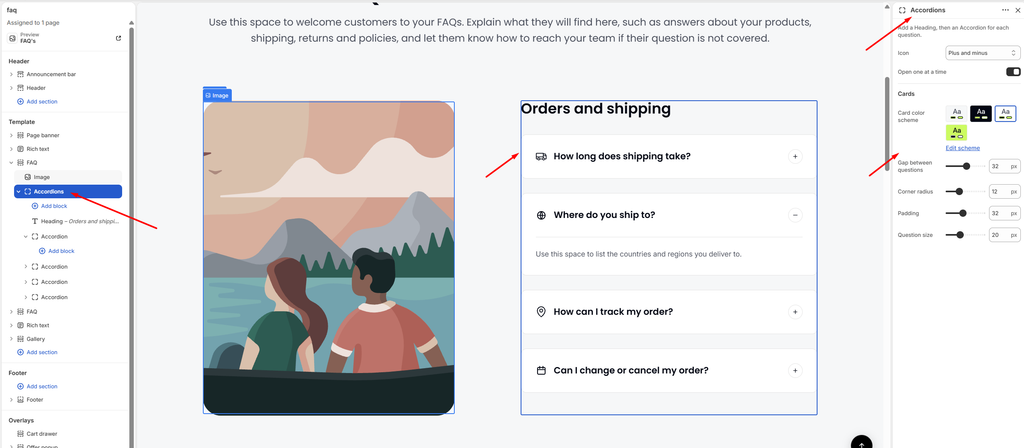
Settings
| Settings | Description |
|---|---|
| Color Scheme | Select a predefined color scheme for the section background and text. |
| Gap Between Image and Questions | Adjust the space between the image and the questions column (0–200 px). |
| Section Width | Set how wide the section is. Options include Same as theme, Full width, Wide, Standard, Narrow and Custom. This overrides the theme’s content width for this section only. |
| Custom Section Width | Appears when Section Width is set to Custom. Set an exact width for the section (600–2000 px). |
| Padding | Choose Desktop or Mobile under Devices, then adjust the Top and Bottom spacing of the section for that device. |
Image Block
Overview
The Image block places a picture next to the questions. It can sit on the left or right, and you can hide it on mobile or turn it off completely. This block is part of every FAQ section and cannot be removed. To hide it, turn off Show image.
How to use
- Go to Online Store → Themes → Customize.
- Open the page that has the FAQ section.
- In the left sidebar, expand the FAQ section and select the Image block.
- Make sure Show image is turned on, then click Select to upload or choose an image.
- Choose the Position (Left or Right) and adjust the Width.
- Pick an Image ratio and set the Vertical position.
- Adjust the Corner radius, and turn off Show on mobile if you want to hide the image on phones.
- Click Save.
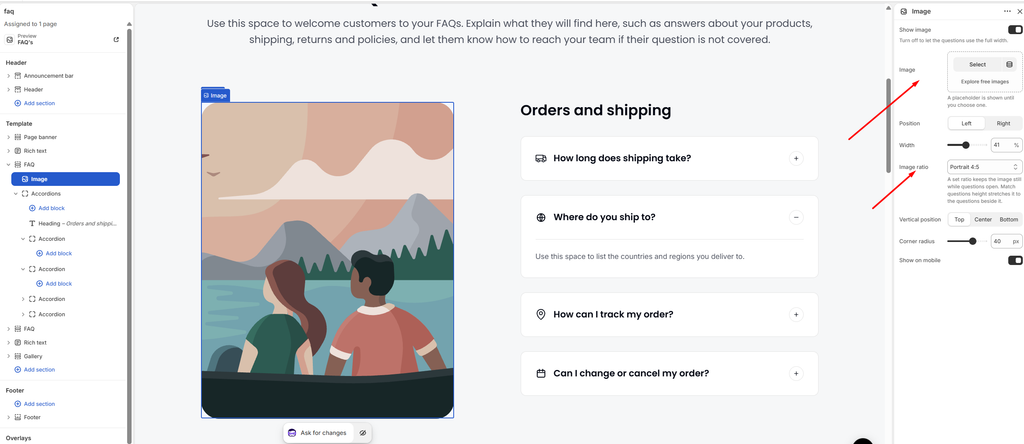
Settings
| Settings | Description |
|---|---|
| Show Image | Turn the image on or off. When it is off, the questions use the full width of the section. |
| Image | Upload or select the image to display. A placeholder is shown until you choose one. |
| Position | Choose which side of the questions the image appears on: Left or Right. |
| Width | Adjust how much of the section width the image takes (25–60%). |
| Image Ratio | Choose the image shape. Options include Match questions height, Original, Square, Portrait 4:5, Portrait 3:4, Landscape 4:3, Landscape 3:2 and Wide 16:9. A set ratio keeps the image still while questions open. Match questions height stretches the image to the height of the questions beside it. |
| Vertical Position | Align the image to the Top, Center or Bottom of the questions column. Not shown when Image Ratio is set to Match questions height. |
| Corner Radius | Customize the rounded corners of the image (0–60 px). |
| Show on Mobile | Turn this off to hide the image on mobile, so phones show only the questions. |
Accordions Block
Overview
The Accordions block holds the group’s heading and all of its questions. Add a Heading first, then one Accordion block for each question. The settings here control how every question card in the group looks and behaves. This block is part of every FAQ section and cannot be removed.
How to use
- Go to Online Store → Themes → Customize.
- Open the page that has the FAQ section.
- In the left sidebar, expand the FAQ section and select the Accordions block.
- Click Add block under Accordions and add a Heading for the group (for example, Orders and shipping).
- Click Add block again and add an Accordion for each question.
- Choose the open and close Icon (Plus and minus, or Chevron), and turn Open one at a time on or off.
- Customize the Card color scheme, Gap between questions, Corner radius, Padding and Question size.
- Click Save.
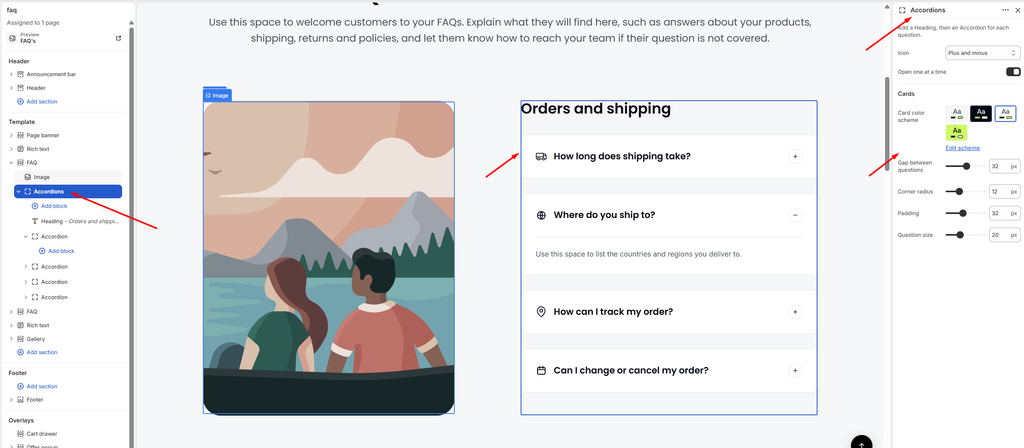
Settings
| Settings | Description |
|---|---|
| Icon | Choose the open and close icon shown on each question. Options include Plus and minus and Chevron. |
| Open One at a Time | When this is on, opening a question closes the one that was open, so only one answer shows at a time. |
| Card Color Scheme | Select a predefined color scheme for the question cards. |
| Gap Between Questions | Adjust the spacing between the question cards (0–60 px). |
| Corner Radius | Customize the rounded corners of the question cards (0–40 px). |
| Padding | Adjust the spacing inside each question card (12–60 px). |
| Question Size | Set the font size of the question text (14–32 px). |
Accordion Block
Overview
The Accordion block is a single question with its answer. Customers click the question to expand or collapse the answer, which keeps long FAQ pages clean and easy to scan. Add one Accordion block for each question inside the Accordions block.
How to use
- Go to Online Store → Themes → Customize.
- Open the page that has the FAQ section.
- Expand the FAQ section, then expand the Accordions block.
- Click Add block → Accordion, or select an existing Accordion block.
- Type your question in the Question field.
- Add the answer in the Answer field. You can use bold, italic, links and lists.
- Choose an Icon, or upload your own SVG or PNG under Custom icon.
- Turn on Open by default if this question should be expanded when the page loads.
- Click Save.
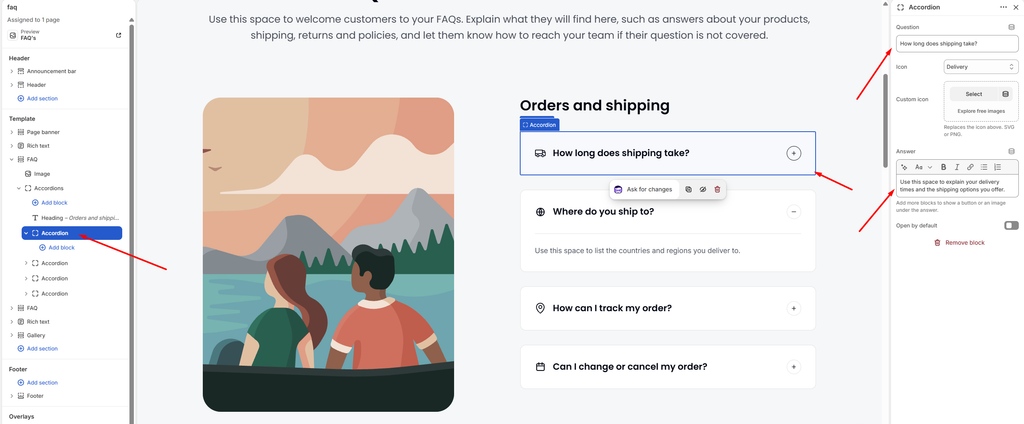
Settings
| Settings | Description |
|---|---|
| Question | Add the question text shown on the card. |
| Icon | Select an icon to display before the question. Options include None, Location, Address book, Phone, Open envelope, Email, Clock, Calendar, Chat, Question, Delivery, Truck, Globe, Return, Credit card, Money, Shield, Lock, Gift, Heart, Tag, Percent, Leaf, Box and Star. |
| Custom Icon | Upload your own icon (SVG or PNG). It replaces the icon selected above. |
| Answer | Add the answer text shown when the question is opened. You can use bold, italic, links and lists. |
| Open by Default | Show this question already expanded when the page loads. |