Theme Settings → Buttons
Overview
These global settings control the shape and behavior of every button in the theme, including Button blocks, Add to cart, the newsletter Subscribe button and the cart buttons. Change them once and all buttons update together.
How to use
- Go to Online Store → Themes → Customize.
- Click the Theme settings icon (the gear) in the left sidebar.
- Open Buttons.
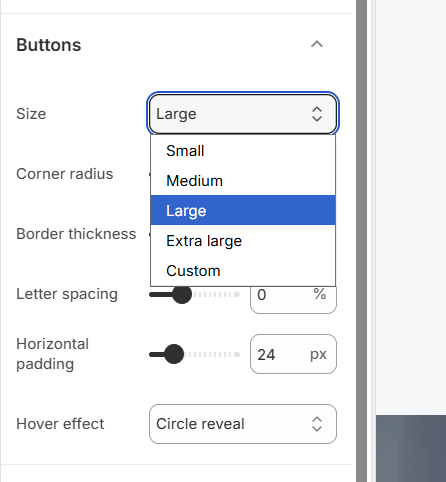
- Choose a Size, then adjust the Corner radius, Border thickness, Letter spacing and Horizontal padding.
- Pick a Hover effect.
- Click Save.
Settings
| Settings | Description |
|---|---|
| Size | Set the button height for the whole theme. Options include Small, Medium, Large, Extra large and Custom. |
| Height | Appears when Size is Custom. Set an exact button height (32–80 px). |
| Corner Radius | Customize the rounded corners of buttons (0–100 px). Use 0 for square buttons and a high value for pill-shaped buttons. |
| Border Thickness | Adjust the thickness of the button outline (0–8 px). |
| Letter Spacing | Adjust the space between letters in button labels (-5% to 10%). |
| Horizontal Padding | Adjust the space on the left and right of the label inside the button (8–80 px). |
| Hover Effect | Choose the animation when a customer hovers over a button: None, Fill sweep (the hover color slides across) or Circle reveal (the hover color grows out from a circle). |
Overview
The Button block adds a clickable call to action to any section, such as Rich text, Group, Section heading, a slide or a card. You choose the label, link, style and an optional icon. The button’s size, corner radius, border and hover effect come from Theme settings → Buttons, so every button in the store looks consistent. The same Button block is used across the whole theme.
How to use
- Go to Online Store → Themes → Customize.
- Click Add block → Button, or select an existing Button block.
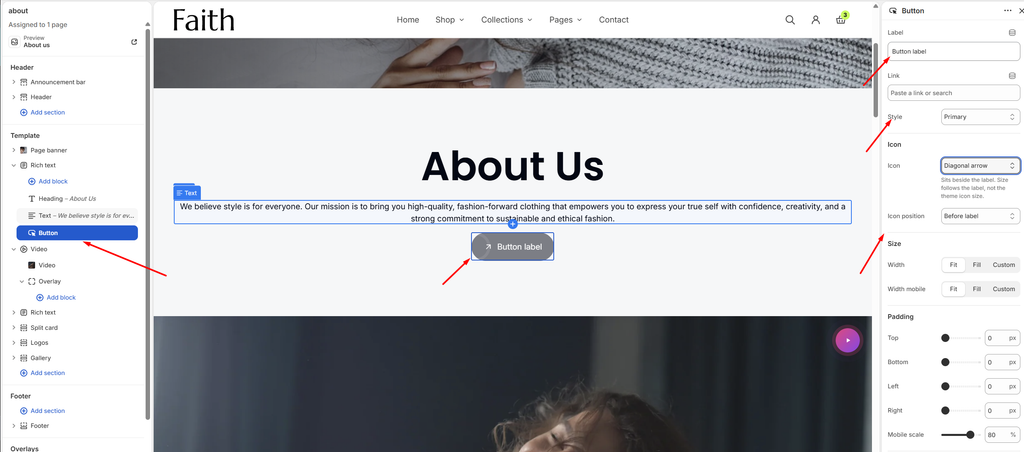
- Enter the button text in Label and choose where it goes in Link.
- Open the page and select the section where you want the button, for example Rich text.
- Choose a Style: Primary, Secondary or Link.
- Optionally, pick an Icon and its Icon position.
- Under Size, set the Width for desktop and mobile.
- Adjust the Padding, and choose an entrance Animation if you want one.
- Click Save.
To change the look of all buttons at once, go to Theme settings → Buttons.
Settings
| Settings | Description |
|---|---|
| Label | Add the text shown on the button. |
| Link | Choose where the button goes: a page, product, collection or any URL. |
| Style | Choose the button style: Primary (filled), Secondary (alternate colors) or Link (text link with no button shape). Colors come from the section’s color scheme. |
| Icon | Add an icon beside the label. Options include None, Diagonal arrow, Arrow, Chevron, Double chevron, Shopping bag, Tag, Percent, Delivery, Heart and Play. The icon size follows the label, not the theme icon size. |
| Icon Position | Appears when an icon is chosen. Place the icon Before label or After label. |
| Width | Set the button width on desktop: Fit (only as wide as the label), Fill (the full available width) or Custom. |
| Custom Width | Appears when Width is Custom. Set the width as a percentage (5–100%). |
| Alignment | Appears when Width is Fill. Align the label Left, Center or Right inside the button. |
| Width Mobile | Set the button width on mobile: Fit, Fill or Custom. Custom shows its own Custom width slider, and Fill shows Alignment mobile. |
| Padding | Adjust the spacing around the button using Top, Bottom, Left and Right controls (0–100 px). |
| Mobile Scale | Shrink the padding on mobile as a percentage of the desktop values (0–100%). For example, 80% turns 20 px of padding into 16 px on phones. |
| Animation Type | Choose how the button appears as the page scrolls: None, Fade in, Rise up or Zoom out. |
| Animation Delay | Appears when an animation is chosen. Wait before the animation starts (0–800 ms). Useful for showing the button after the heading and text. |