Spotlight Products Section
Overview
The Spotlight products section shows two things side by side: a moving carousel of products from a collection, and one featured product in a large panel with its image gallery, price, description and options. It’s built for drawing attention to a collection while pushing one hero product, for example Styles In Focus. The section has three parts: a Section heading, a Product carousel and a Featured product.
How to use
- Go to Online Store → Themes → Customize.
- Open your home page (or any page) and click Add section → Spotlight products, or select an existing one.
- Edit the Section heading to change the title. To highlight a word, wrap it in square brackets, like Styles In [Focus].
- Select the Product carousel block and choose a Collection.
- Select the Featured product block and choose a Product.
- Back on the section, choose a Color scheme and adjust the Layout settings.
- Set the Top and Bottom padding for Desktop and Mobile.
- Click Save.
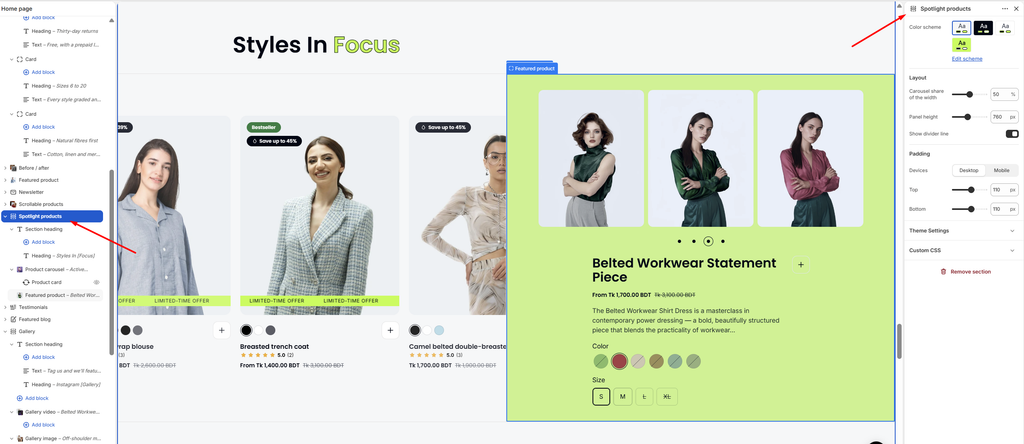
Settings
| Settings | Description |
|---|---|
| Color Scheme | Select a predefined color scheme for the section background and text. |
| Carousel Share of the Width | Set how much of the width the product carousel takes on desktop (40–60%). The featured product panel takes the rest. |
| Panel Height | Set the height of the carousel and the featured product panel on desktop (500–1100 px). |
| Show Divider Line | Show a thin line between the section heading and the content below. |
| Padding | Choose Desktop or Mobile under Devices, then adjust the Top and Bottom spacing of the section for that device. |
Product Carousel Block
Overview
The Product carousel block is the left side of the section: a row of product cards from a collection. The cards can drift sideways on their own like a marquee, and can also slide as the customer scrolls down the page. This block is part of the section and cannot be removed.
How to use
- Go to Online Store → Themes → Customize.
- Open the page that has the Spotlight products section.
- Expand the section and select the Product carousel block.
- Choose a Collection and set how many Products to show.
- Adjust the Card width.
- Turn on Auto scroll and set the Auto scroll speed, and turn Move with page scroll on or off.
- Click Save.
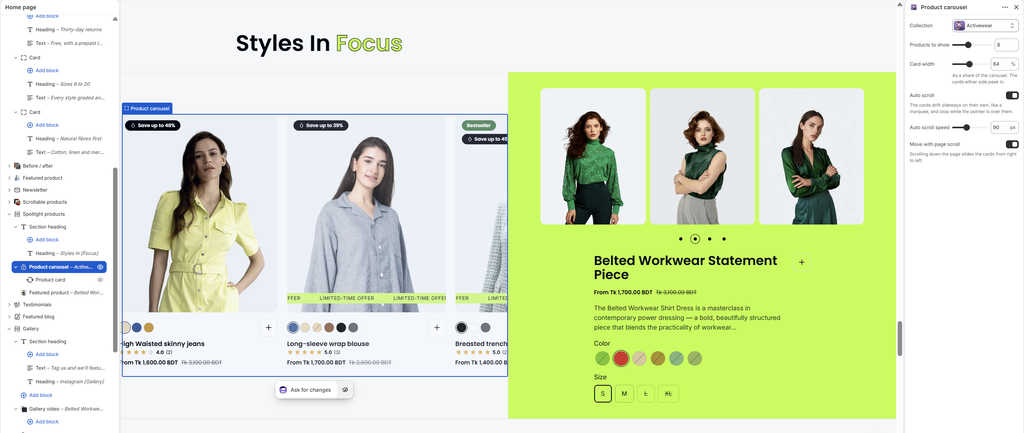
Settings
| Settings | Description |
|---|---|
| Collection | Choose the collection whose products appear in the carousel. |
| Products to Show | Set how many products from the collection to show (3–16). |
| Card Width | Set each card’s width as a share of the carousel (40–90%). The cards on either side peek in. |
| Auto Scroll | Make the cards drift sideways on their own, like a marquee. They stop while the customer’s pointer is over them. |
| Auto Scroll Speed | Appears when Auto scroll is on. Set how fast the cards move (20–200 px per second). |
| Move with Page Scroll | Slide the cards from right to left as the customer scrolls down the page. |
Product Card Block
Overview
The Product card block controls how every product card looks in this section. Cards follow Theme settings → Product cards by default. The settings here change them for this section only, for example to hide ratings in one carousel while keeping them elsewhere. The same block appears in other product sections and works the same way.
How to use
- Go to Online Store → Themes → Customize.
- Open the page that has the section, for example Spotlight products.
- Expand the section, then the Product carousel, and select Product card.
- Leave a setting on Same as theme settings to follow the theme, or choose Show, Hide or another ratio to override it here.
- Click Save.
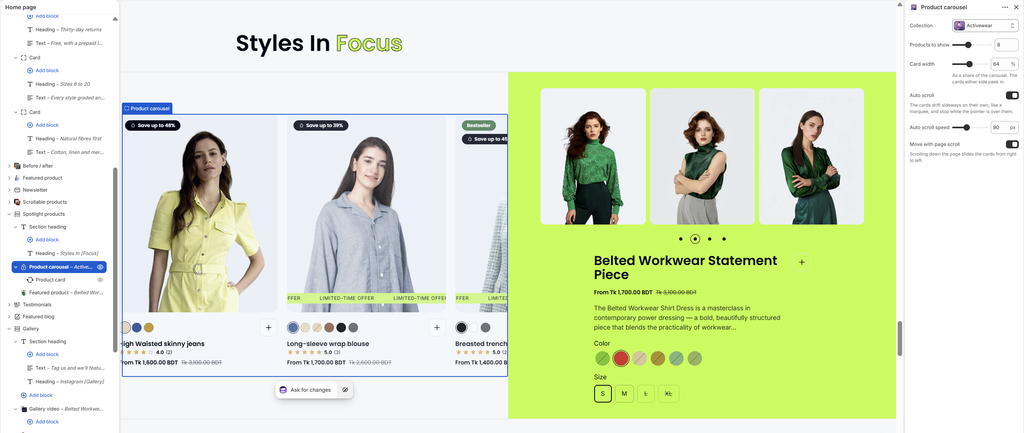
Settings
| Settings | Description |
|---|---|
| Image Ratio | Set the shape of the product images in this section. Options include Same as theme settings, Portrait, Portrait (5:4), Portrait (4:3), Portrait (2:3), Square, Landscape (3:2), Landscape (16:9) and Original. |
| Show Vendor | Show or hide the product vendor (brand) on the cards: Same as theme settings, Show or Hide. |
| Show Product Rating | Show or hide the star rating on the cards: Same as theme settings, Show or Hide. Ratings need a product reviews app. |
| Show Variant Swatches | Show or hide the color swatches on the cards: Same as theme settings, Show or Hide. |
| Show the Add Button | Show or hide the quick add (+) button on the cards: Same as theme settings, Show or Hide. |
Featured Product Block
Overview
The Featured product block is the right side of the section: one product shown large, with an image gallery, price, description, and color and size options. Customers can choose a variant and add the product to the cart without leaving the page. This block is part of the section and cannot be removed.
How to use
- Go to Online Store → Themes → Customize.
- Open the page that has the Spotlight products section.
- Expand the section and select the Featured product block.
- Choose a Product.
- Pick a Color scheme for the panel and turn Show description on or off.
- Set how many Images in the gallery to show, and turn Autoplay gallery on or off.
- Optionally, upload a Pattern image to repeat faintly over the panel, then adjust its Size and Opacity.
- Click Save.
Settings
| Settings | Description |
|---|---|
| Product | Choose the product to feature. |
| Color Scheme | Select a predefined color scheme for the featured product panel. |
| Show Description | Show a short version of the product description under the price. |
| Images in the Gallery | Set how many of the product’s images to show in the gallery (3–10). |
| Autoplay Gallery | Move through the gallery images automatically. |
| Change Every | Appears when Autoplay gallery is on. Set how long each image stays before moving on (2–10 seconds). |
| Pattern Image | Upload a small picture to repeat faintly over the panel, like a texture. |
| Size | Appears when a Pattern image is added. Set the size of each repeated tile (16–300 px). |
| Opacity | Appears when a Pattern image is added. Adjust how visible the pattern is (5–100%). |