Overview
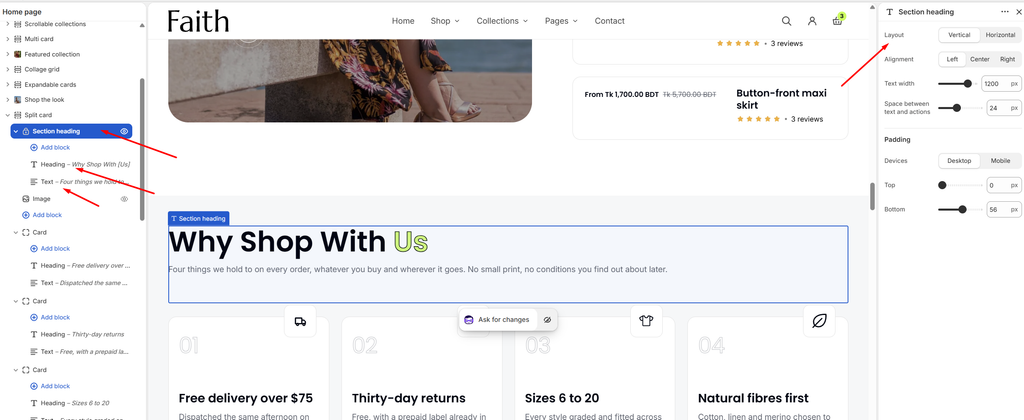
The Section heading block is the title area at the top of a section, for example Why Shop With Us above the Split card cards. It holds a Heading, a Text line and, optionally, a Button. In the horizontal layout it can also show a View all button or carousel arrows on the right. You’ll find this block in most sections, such as Split card, Gallery, Featured collection, Testimonials and Multi card, and it works the same everywhere. It is part of the section and cannot be removed. To hide it, hide or remove the blocks inside it.
How to use
- Go to Online Store → Themes → Customize.
- Open the page and expand the section, for example Split card.
- Select the Section heading block.
- Edit the Heading and Text blocks inside it, or click Add block to add a Button.
- To highlight a word in the heading, wrap it in square brackets, like Why Shop With [Us].
- Choose the Layout: Vertical (title stacked above the content) or Horizontal (title on the left, actions on the right).
- For the vertical layout, choose the Alignment. For the horizontal layout, choose what to Show on the right: nothing, a View all button, Carousel arrows, or both.
- Adjust the Text width and the Space between text and actions.
- Set the Top and Bottom padding for Desktop and Mobile.
- Click Save.
Settings
| Settings | Description |
|---|---|
| Layout | Choose Vertical (heading stacked above the section content) or Horizontal (heading on the left, button or arrows on the right). |
| Alignment | Appears in the Vertical layout. Align the heading Left, Center or Right. |
| Vertical Alignment | Appears in the Horizontal layout. Line up the heading and the actions at the Top, Middle or Bottom. |
| Text Width | Set how wide the heading text can grow before it wraps (320–1400 px). |
| Space Between Text and Actions | Adjust the gap between the heading text and the button or arrows (0–60 px). |
| Show | Appears in the Horizontal layout. Choose what shows on the right: Nothing, View all button, Carousel arrows, or Button and arrows. Carousel arrows control the section’s carousel and hide when the section shows a grid. |
| Button Label | Appears when a button is shown. Enter the button text. |
| Button Link | Appears when a button is shown. Choose where the button goes. Leave it empty to link to the section’s collection. |
| Button Style | Appears when a button is shown. Choose Primary or Secondary. |
| Arrow Style | Appears when arrows are shown. Choose Diagonal arrow or Left / right arrow. |
| Padding | Choose Desktop or Mobile under Devices, then adjust the Top and Bottom spacing of the heading area for that device. |
Tip: The heading text, size and color are set in the Heading and Text blocks inside this block. See the Heading block and Text block docs.